
At Metaview, we capture every interview. Recruiters and hiring managers get a complete, searchable transcript of each conversation, which means they're free to focus on the candidate instead of taking notes.
When you review an interview transcript in our web app, you can play the audio back alongside the text. The currently-spoken word highlights as the audio plays, so the reviewer can follow along without effort. Here's what that looks like:
Doing this in React comes with some challenges. We need a way to play audio while programmatically knowing the changing playback position. We then need to animate a visual marker of the active word. And we want the page to perform well across a range of devices, including hitting high frame rates on low-powered ones.
Implementation.
First, the audio playback. To keep things simple, we'll use the <audio> element, which comes with a built-in UI.
To respond to changes in the timestamp as the audio plays, we listen to the timeupdate event, which fires "when the time indicated by the currentTime attribute has been updated". To subscribe, we attach a ref to the audio element so we can access its addEventListener function.
const Player: React.FC = () => {
  const playerRef = useRef<HTMLAudioElement>(null);

  useEffect(() => {
    const onTimeUpdate = () => {
      console.log(playerRef.current.currentTime);
    };
    playerRef.current.addEventListener("timeupdate", onTimeUpdate);
    return () => playerRef.current
      .removeEventListener("timeupdate", onTimeUpdate);
  }, []);

  // controls={true} displays the <audio> UI
  return <audio controls src={audioSrc} ref={playerRef} />;
};
We use useEffect to subscribe to the player's timeupdate event and log currentTime to the console. The function returned from useEffect is the cleanup, removing the event listener when the component unmounts.
Performance.
This is where it gets trickier. You might be tempted to store the changing currentTime value in React state, pass it as a prop to a child component that highlights the currently-spoken word, and call it a day.
That'll probably work fine on a powerful development machine. It will not work on the low-powered devices many of our users have. We want this interface running at 60fps on a potato, which means thinking carefully about render cost.
The timeupdate event fires very frequently (4Hz to 66Hz), and plugging it straight into React state triggers a re-render on every fire. In a small component tree this is survivable; in any non-trivial transcript page it's not. To hold 60fps on low-powered devices, we need a different approach.
Modifying styles directly.
How you style the currently-spoken word depends on the shape of your transcript data. At Metaview, each word comes with a startTime and endTime, so we know when the word was spoken relative to the start of the audio.
The approach: in the timeupdate event handler, find the currently-spoken word by comparing the player's currentTime to each word's startTime and endTime. Then use refs to find the DOM element corresponding to that word, and add properties to its style object to make it stand out.
Modifying the code from before:
const Transcript: React.FC<Props> = ({ transcript }) => {
  const playerRef = useRef<HTMLAudioElement>(null);
  const wordsRef = useRef<HTMLSpanElement>(null);

  useEffect(() => {
    const onTimeUpdate = () => {
      const activeWordIndex = transcript.words.findIndex((word) => {
        return word.startTime > playerRef.current.currentTime;
      });
      const wordElement = wordsRef.current.childNodes[activeWordIndex];
      wordElement.classList.add('active-word');
    };
    playerRef.current.addEventListener("timeupdate", onTimeUpdate);
    return () => playerRef.current.removeEventListener(
      "timeupdate",
      onTimeUpdate
    );
  }, []);

  return (
    <div>
      <span ref={wordsRef}>
        {transcript.words.map((word, i) => <span key={i}>{word}</span>)}
      </span>
      <audio controls src={audioSrc} ref={playerRef} />
    </div>
  );
};
The code is slightly simplified and omits some boilerplate. active-word is a CSS class with styles (a light background color, in our case) that make the active word stand out. Here's the result:
The key thing to notice is that we're working outside React's render cycle, mutating DOM properties in a callback instead.
Performance comparison.
A quick demonstration of the difference between storing currentTime in state and reactively re-rendering, versus using callbacks and refs to skip React's render entirely.
For both runs, the Chrome dev tools are throttling CPU to a 6x slowdown (simulating a low-powered device) and recording a trace.
Storing in state:
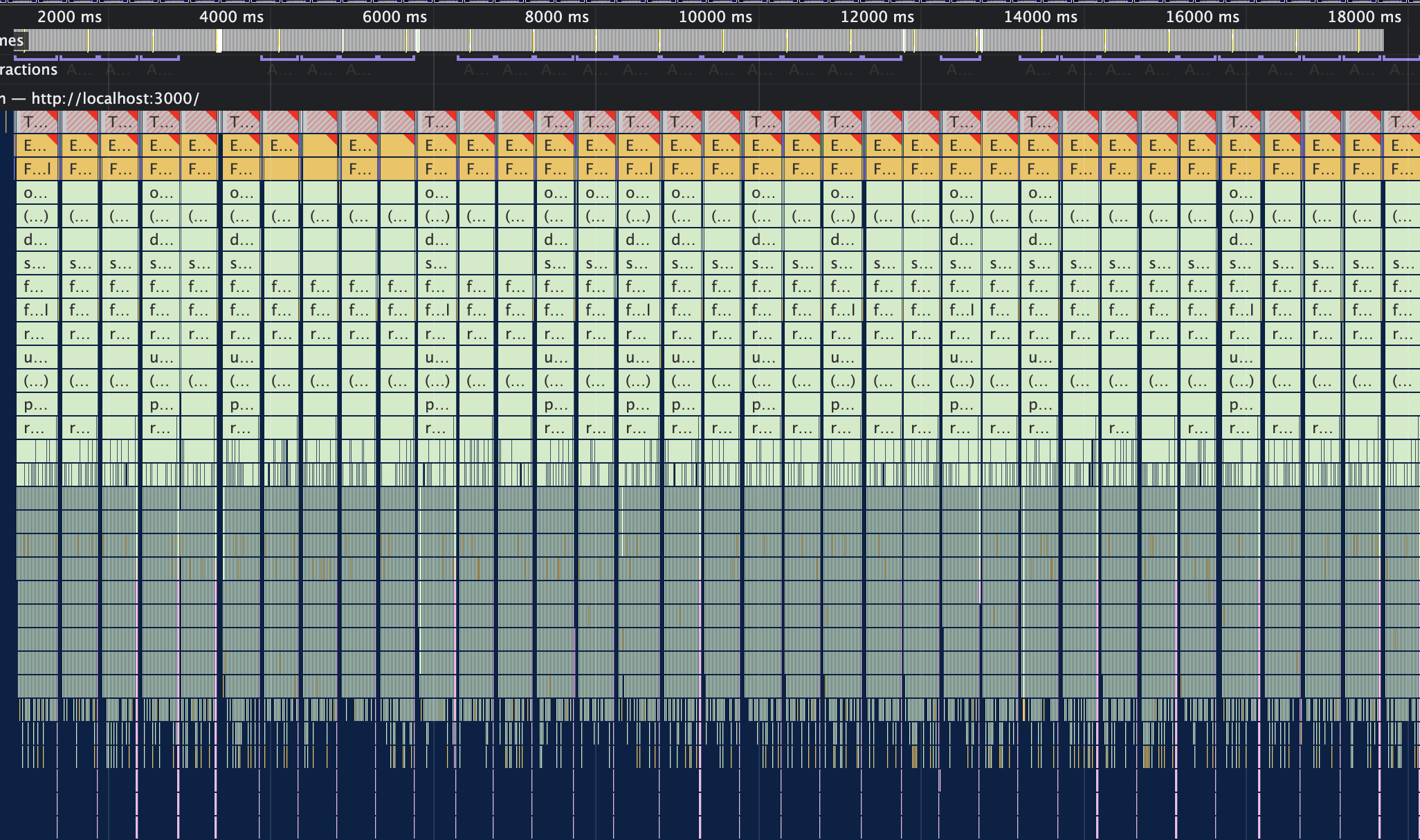
A sea of red. The interface feels sluggish, the active word crawls along behind the audio, and the CPU is straining under React's render cost. Each timeupdate event is handled in more than 400ms (and that's being generous). Considering 60fps gives us a 16ms budget, we're way off.
That's with a small test React app and a tiny component tree. The latency would be even higher in real-world apps.
Using callbacks and refs:
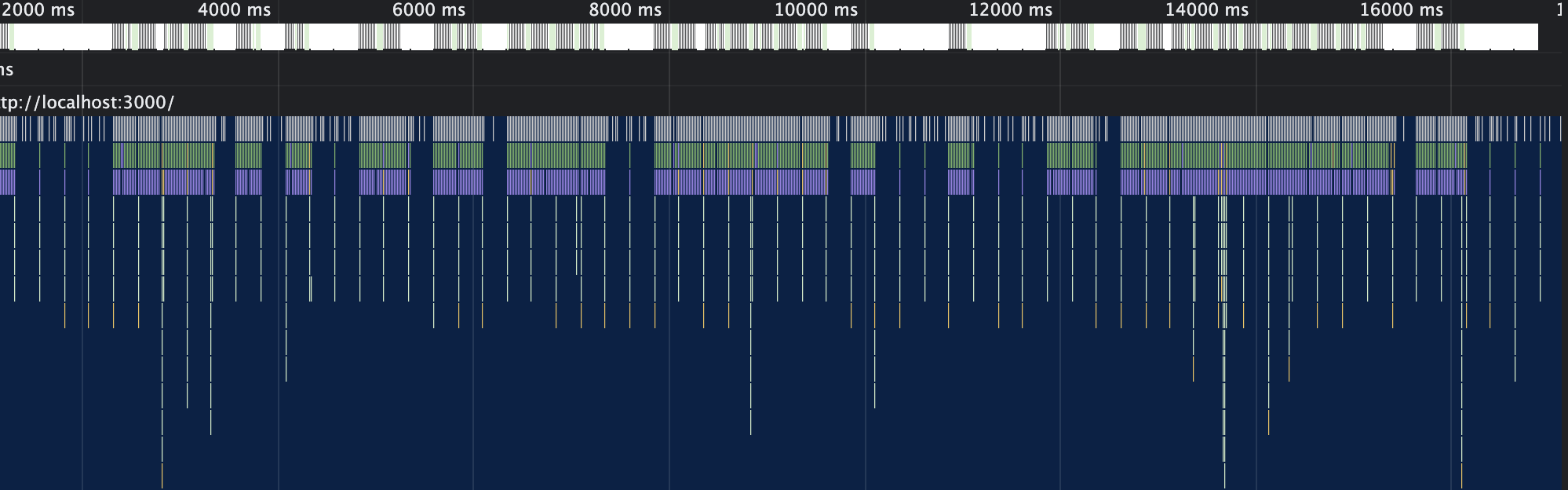
Buttery smooth, not a dropped frame in sight. The CPU is happy, the active word marker is skipping along perfectly aligned with the audio, and this is still with the 6x CPU throttle. Each timeupdate event is handled in under 1ms, comfortably inside the 16ms budget.
Accessing currentTime outside timeupdate.
What if we need to know the current time position outside the timeupdate callback? A real example we faced is implementing keyboard shortcuts for skipping backward and forward.
We use MousetrapJS for binding keyboard shortcuts to callbacks. To implement a YouTube-like shortcut for skipping backward 10 seconds:
useEffect(() => {
  Mousetrap.bind('j', () => {
    // Skip backwards 10 seconds
  });
  return () => Mousetrap.unbind('j');
}, []);
Storing currentTime in state would be a bad idea here. Beyond the FPS cost from earlier, we'd be binding and unbinding a new callback on every frame.
Enter stage left: refs.
The useRef hook creates a mutable ref object, and changing the value of the .current property doesn't trigger a React render. It's useful for more than just accessing DOM nodes.
We can store arbitrary mutable values in refs, which makes refs a good option for currentTime. We create a ref and update it when the timeupdate event fires. The skip-10s shortcut then binds like this:
useEffect(() => {
  Mousetrap.bind('j', () => {
    requestSeek(positionSecondsRef.current - 10)
  });
  return () => Mousetrap.unbind('j');
}, [requestSeek, positionSecondsRef]);
The values of positionSecondsRef and requestSeek don't change (as long as requestSeek is created with useCallback), so the shortcut binds only once.
Aside: type branding
We're handling time values in a lot of different places, and it's easy to get inconsistent units. The audio currentTime property is in seconds, so we want to make sure we're not passing it into functions that accept milliseconds, or comparing it with values in milliseconds.
Since we're using TypeScript, the type system can give us some help. With type branding, we can define a type Seconds that the compiler treats as distinct from a plain number, while still letting us do arithmetic on it.
type Brand<K, T> = K & { __brand: T }
type Seconds = Brand<number, 'Seconds'>;

const x: Seconds = 5 as Seconds;
function seekToPosition(position: Seconds) {
  //
}
seekToPosition(x); // Compiles
seekToPosition(5); // TypeError: Argument of type 'number' is not
                   // assignable to parameter of type 'Seconds'.
seekToPosition(5 as Seconds); // Compiles
We prefer this to embedding units in variable names. The names stay concise, and the compiler does the checking.
Pretty playback.
A couple of variations on the active-word highlight, with brief notes on implementation.
Moving highlight behind words.
This style moves a rectangle smoothly from word to word by animating its position and size. As before, we find the DOM node for the active word. We then use its offsetTop, offsetLeft, offsetWidth, and offsetHeight to position the highlight. A transition property on the highlight makes the position and size animate between updates.
Highlighting the current word.
Similar to the example above, but we don't animate the position or size. The highlight element sits on top of the words, and we set its textContent property to match the active word's textContent.
Closing thoughts.
That's enough to get a transcript player started. There's more to building a genuinely delightful experience: custom audio player UI, video playback, code playback, keyboard navigation between speakers, scroll-following. But the refs-over-state pattern is the foundation that makes the rest of it cheap to add.
Frequently asked.
Does the refs-over-state pattern still hold in modern React?
Yes. The principle is independent of React version: handle high-frequency events outside the render cycle by mutating DOM directly via refs. Server Components don't change the client-side reactivity model, so any client-side tree handling timeupdate-style events still benefits from this approach.
Why refs instead of React state for timeupdate?
The 60fps frame budget is 16ms per frame. The timeupdate event can fire up to 66 times per second, and each React re-render in a non-trivial component tree easily exceeds 16ms. Refs let you mutate DOM properties directly in the callback without triggering React's reconciliation, which keeps the frame budget intact.
How does TypeScript type branding help?
Time values appear in many forms: audio currentTime in seconds, animation timestamps in milliseconds, server timestamps as ISO strings. Branding the numeric ones with phantom types (type Seconds = number & { __brand: 'Seconds' }) gives the compiler enough information to flag mismatches that would otherwise silently pass type-checking.
Where can I see the transcript player today?
It's part of every interview captured by our Notetaker. Connect a calendar in Settings > Integrations, run an interview, and the transcript-with-sync experience is there in the post-meeting view.
Bring Metaview into your hiring stack.
Live notes, structured scorecards, and ATS sync - set up in under 10 minutes.
