
If you set recruiting sequence send times on your own clock, candidates in other regions often get your emails at the wrong time of their day. A first email scheduled for nine in the morning in London reaches a candidate in New York at four in the morning. A follow-up timed for your working week can land on their weekend, or on a public holiday where they live.
I recommend running every sequence on the candidate’s working calendar: their morning, their working days, and their public holidays.
What should recruiting sequence send times follow?
Follow the candidate’s calendar, not the sender’s: their local time, their working days, and their public holidays. A recruiting sequence is a series of messages each candidate receives in order, usually with a wait between steps. Its send times are the hours and days those steps can go out.
Send each step in the candidate’s morning.
Give each candidate a send window: a few hours of their local morning when the steps of your sequence can go out. Below is why the window sits in the morning, how wide to make it, and how to store the time zone it depends on.
An email that lands at four in the morning still gets read, just later, under everything that came in overnight. I’d expect one that lands as the candidate starts their day to sit near the top.
Keep the window short, two or three hours, so every send still lands in the candidate’s morning. Using a window instead of one fixed time also spreads the sends, so a sequence with dozens of candidates in one region doesn’t send every email in the same minute. That keeps your sending rate steady.
To see why a steady sending rate helps, read how to keep recruiting emails out of spam.
Store each candidate’s time zone by name.
The window only works if every candidate has a time zone attached, stored in a way that doesn’t drift when clocks change. Use the names from the Time Zone Database, a free public record of the history of local time around the world. Software uses it to work out the correct local time for any place, and volunteers update it as governments change time zone boundaries and daylight saving rules. The Internet Assigned Numbers Authority publishes it. Each name pairs a continent or ocean with a location in it, usually a city, such as “America/Chicago” or “Europe/Berlin.”
The city in each name stands for a whole region whose clocks agree, so pick the name for the place the candidate lives rather than a broad label like “Mountain time.” Denver and Phoenix are both on Mountain time, but “America/Denver” moves its clocks for daylight saving time and “America/Phoenix” doesn’t, so the two show different times for the months Denver is on daylight saving time.
Count the waits in the candidate’s business days.
The wait between two steps decides which day the next step lands on. Count it in business days on the candidate’s calendar, meaning their working days minus their public holidays.
Count a three-day wait both ways.
Here’s how a three-day wait lands when step one goes out on a Thursday:
- Step one goes out on Thursday, and the wait starts counting on Friday.
- Counted in calendar days, the three days are Friday, Saturday, and Sunday, so step two goes out on Sunday, a day the candidate isn’t working.
- Counted in the candidate’s business days, the three days are Friday, Monday, and Tuesday, so step two goes out on Tuesday.
In Saudi Arabia, Qatar, and Kuwait, the weekend falls on Friday and Saturday, so Sunday is a working day there, and Friday isn’t. A sequence that skips a London sender’s weekend still sends to a candidate in Riyadh on Friday, their day off, and sends nothing on their Sunday.
Test how your sending tool counts waits.
Before you rely on any sending tool, find out whether its waits count calendar days or business days. If they count calendar days, the day you send step one decides which day every later step lands on.
Start with the tool’s help page for its wait or delay setting. If it doesn’t say, test it: add yourself to a sequence on a Thursday with a three-day wait, and see whether step two reaches you on Sunday or on Tuesday.
If the tool counts business days, find out whose weekend and holidays it skips, the sender’s or the candidate’s. A tool that skips only the sender’s weekend can still send to Riyadh on a Friday.
Pick safe start days for calendar-day waits.
With a three-day wait, a step sent on a Wednesday or Thursday puts the next one on a Saturday or Sunday. So send step one only on a day from which every wait ends on a weekday in the candidate’s time zone. For a sequence with one three-day wait, those start days are Monday, Tuesday, and Friday.
Each extra wait can rule out more start days, so count forward from each weekday through every wait. With two three-day waits, a Tuesday start works (Tuesday, Friday, Monday) and so does a Friday start (Friday, Monday, Thursday), but a Monday start puts step three on a Sunday.
If no start day is left, make one or more of the three-day waits seven days long. Counted in calendar days, a seven-day wait ends on the same weekday it started on, a week later.
These start days assume a Saturday and Sunday weekend, so work them out again for any region whose weekend falls on other days. Then check the dates each wait ends on against the candidate’s public holidays.
Which public holidays move a step?
The candidate’s national public holidays do, and so do their regional holidays when you know the region. When a step falls due on one of those holidays, move it to the candidate’s next working day, and count each later wait from that new date.
Keep a holiday calendar for each country.
If your sending tool counts waits in business days, it moves the step for you, but only if it has the holiday calendar for the candidate’s country. So keep one for each country your candidates live in and each country you hire in, plus a regional one where you know the region, and make sure each January that the new year’s holidays are on them. If your tool can’t hold one, check each step’s date against the calendar yourself before the step goes out.
Google Calendar and Outlook both offer public holiday calendars by country, which you can add beside your own calendar. In Google Calendar on a computer:
- Open “Settings” at the top right, then “Settings” again in the menu.
- In the left panel, choose “Add calendar,” then “Browse calendars of interest.”
- Under “Regional holidays,” choose “Browse all,” and check the box next to each country your candidates live in or you hire in.
- Back under “Regional holidays,” open the drop-down next to each calendar you added, keep “Public holidays” selected, and clear “Other observances,” since only public holidays move a step.
If the calendar you need isn’t in Google’s list, you can subscribe to one published at a web address (URL): next to “Other calendars,” click “Add other calendars,” then “From URL,” enter the calendar’s web address, and click “Add calendar.”
In Outlook, add the calendars through Outlook on the web. With a work or school account in Microsoft 365, that subscribes you to each one, so it updates when holidays are added or changed. The holidays built into classic Outlook only cover the years 2016 to 2026.
- In Outlook on the web or Outlook.com, open “Calendar” and choose “Add a calendar.”
- Choose “Holidays.”
- Pick the calendar for each country you need, or find it with “Filter.”
Check the calendars again in the week before any holiday whose date depends on a moon sighting or a government announcement, and keep checking until the date is confirmed. In many countries Eid al-Fitr is confirmed only a day or two ahead. Governments add or move public holidays from time to time.
Some countries also swap weekend days for working days around a long break. For Spring Festival in 2026, China’s government gave nine days off, from Sunday, February 15, to Monday, February 23, and made Saturday, February 14, and Saturday, February 28, working days instead. Check each calendar for weekend days like these as well as the days off.
Long breaks, out-of-office replies, and your own holiday.
Three other situations come up around holidays, each with its own answer. Decide how you’ll handle all three before the sequence starts:
| The situation | What to do | Why |
|---|---|---|
| A national break of several days, such as Spring Festival in China | Don’t start a sequence in the last few working days before the break. Move any step due inside the break to the first working day after it | A first email sent just before a long break gets buried under the mail that piles up while the candidate is away |
| An out-of-office reply with a return date | Pause the remaining steps until that date | The candidate has told you when they’ll read it |
| The sender’s own holiday | Pause nothing. Set no out-of-office on the sending mailbox, and forward replies to a teammate who answers them while the sender is away | The candidate’s calendar sets the timing, not the sender’s. An out-of-office would tell every candidate who replies that the sender is away, so a teammate answers instead |
Forward the sender’s replies while they’re away.
Turn on forwarding in the sending mailbox the day the sender leaves, and turn it off the day they’re back. It forwards every new message, not only candidate replies, so agree with the teammate which messages they’ll answer. In Gmail, on a computer:
- Sign in to the sending mailbox, then open “Settings” at the top right and choose “See all settings.”
- Open the tab whose name starts with “Forwarding,” and choose “Add a forwarding address.”
- Enter the teammate’s email address, then click “Next” and “Proceed,” and confirm the message that follows. Gmail sends a verification link to that address.
- Ask the teammate to click the link, because Gmail can’t forward to the address until it’s verified.
- Back in Gmail’s settings, refresh the page, open the same tab, and choose “Forward a copy of incoming mail to” with the teammate’s address.
- Choose “Keep Gmail’s copy in the Inbox,” so the sender still has every reply when they’re back, then click “Save Changes.”
To turn it off when the sender is back, open the same tab, choose “Disable forwarding,” and click “Save Changes.”
In new Outlook or Outlook on the web:
- Open “Settings,” then “Mail” and “Forwarding.” If Outlook asks you to sign in, do it, because the forwarding settings aren’t available until you do.
- Turn on “Enable forwarding” and enter the teammate’s email address.
- Check “Keep a copy of forwarded messages,” so every reply also stays in the sender’s mailbox, then choose “Save.”
To turn it off, open the same page, switch to “Disable forwarding,” and choose “Save.”
To decide who answers replies while the sender is away, read how to keep candidate replies from getting lost.
A rule for candidates whose location is unknown.
Some candidates arrive with no location at all, or with one you can’t trust. For them, work down this order and stop at the first source you have:
- A location the candidate states themselves, on a profile or résumé or in an earlier conversation with your team.
- The location the role requires, if it’s on site or hybrid, because a candidate who can take it has to be within reach of it.
- The time zone and holiday calendar of the country the role is hired in, for a remote role or when nothing else exists.
Don’t go further and infer a location from a phone number or an email domain. A phone number shows where it was issued and an email domain shows who provides the address, and neither has to change when someone moves. A wrong guess does more harm than defaulting to the role’s country, which at least puts your emails inside the working hours the job runs on.
When a candidate whose location you don’t know replies, use that reply to correct their timing. If a reply names a city, send every later message on that city’s time zone and holidays. If their replies keep arriving in your evening, they may be in another time zone, but that’s only a hint, so ask where they’re based when you first speak.
Remote roles open across several regions.
For a remote role open across several regions, split the candidates whose location you know by region before the sequence starts. Give each region its own window and holiday calendar. Use the time zone and holidays of the country the role is hired in for everyone else until they tell you where they are.
If that country has several time zones, pick a window that falls inside working hours in all of them, and use it only until you know each candidate’s zone. In the contiguous United States, a window from eleven to one Eastern time is eight to ten in the morning on the West Coast, and late morning into early afternoon on the East Coast, so it sits inside working hours on both.
Where Metaview fits in sequence timing.
The rules above apply whatever tool sends your sequence. Metaview’s sending tool is Metaview Outreach, where a recruiter builds a sequence of automated email steps and reviews it before it goes out. Metaview Outreach then schedules the steps and follows up automatically, with personalization for each candidate.
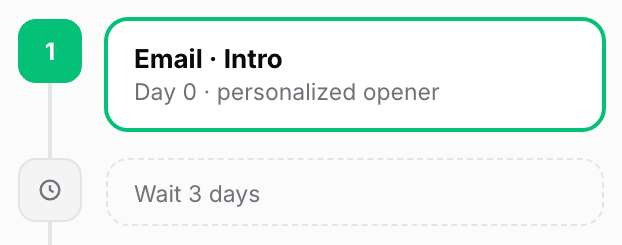
Each step has its own timing: it can go out immediately, after a set delay such as three days after the previous step, or on the next business day at a specific time.
Catch the candidate’s location on the first call.
Where a candidate is based usually comes up on the first call.
The Metaview Notetaker joins as a visible participant and records the call only if consent is given under your team’s own process. Metaview captures every spoken word of that call. If a candidate mentions their city or working hours, the transcript has it, so you can update their timing for the emails that follow.
What the replies tell you about timing.
Once a sequence is running, read its replies region by region. Each of these four patterns is worth checking against the rules above:
- Out-of-office replies that name a public holiday: check that this year’s holiday calendar is loaded for that country.
- A reply that answers two of your emails at once: check whether a wait counted weekend days. A three-day wait counted from a Friday sends the next step on Monday, one working day after the first instead of three.
- A candidate who says they’re based somewhere else: check which source in the unknown-location order set their time zone, and whether you missed a location they stated.
- One region replying far less than the others: check that region’s window and weekend, then whether the emails reached the inbox at all.
When each region’s sends land inside its window on its business days, and none of these patterns shows up, your sequence is running on the candidate’s calendar.
Settle your send times before the first step goes out.
See an automated email sequence built and reviewed in Metaview Outreach.
Frequently asked.
Should a recruiting sequence ever send on a weekend?
I wouldn’t. A candidate who reads it on their weekend still replies on their own schedule, so the send gains nothing and uses up a step on a day they aren’t working.
What if the candidate lives in one country and works for a team in another?
Send on the time zone where they live, because that’s where they read email. Use their employer’s holidays only if they mention them, since a remote employee may keep the public holidays of the country they live in.
Should a step moved for a holiday mention the holiday?
No. The point of moving the step is that the candidate never notices it moved, and a line about their holiday reads like an automated guess about their week.
What send times should an urgent role use?
Use the same window, with shorter waits between steps. Urgency changes how close together the steps sit, but no step should land at night or on the candidate’s holiday.
