
A job description checker grades a post you already have, and the ten tools below grade very different parts of it.
Some read the words: how hard the post is to read, whether its tone fits your brand, whether it leans on gendered or exclusionary language, and whether it runs too long. Others read what the post asks for, such as the experience and degrees it requires. They also check what a pay disclosure law or a company policy says the post has to include, such as a pay range.
I’d check what each post asks for before polishing how it reads. Most live posts were written for the role as the hiring manager described it in the kick-off meeting. The role can change after that. A post can pass every wording check and still ask for more experience than the hiring manager now wants, or leave out a pay range its location requires.
To check a post, you paste it in or give the tool a link. Some tools can read it straight from your applicant tracking system (ATS). Each one returns a score or line-by-line findings.
Tools that write a first draft with artificial intelligence (AI) do a different job. Our list of free AI job description generators covers them.
This article compares ten job description checkers and shows you how to choose one for the posts you have live. Each entry says what the tool checks and how a post gets into it. It also says which team the tool suits, and what it leaves for you to check yourself.
Ten job description checkers and what each one reads.
The table compares the ten tools on four things: what each one reads, how a post gets into it, whether it checks one post or many, and how you can start. Use it to shortlist two or three tools, then read their entries below.
| Tool | What it reads | How a post gets in | One post or many | How to start |
|---|---|---|---|---|
| Metaview Job Posts | The post against what was said about the role; posts kept fresh, compliant, engaging, and on-brand; your own checks | Your live and draft posts in Job Posts | Your live and draft posts | A demo with Metaview’s team |
| Datapeople (now JobNav) | Title against requirements; salary where the law requires it; missing statements; wording and brand voice | Browser extension on the ATS job post page; an integration or a daily import | Reports on every live job, with a spreadsheet download | A quote; a compliance check of public jobs after you share an email |
| Applied’s job description analysis tool | Requirement wording; reading burden and biased wording | Paste | One post, erased when you close the browser | A basic version with no account; a trial after sign-up |
| Ongig Text Analyzer | Pay transparency checks; readability and biased wording | Paste or Word on the entry plan; ATS import on higher plans; an application programming interface (API) | A dashboard and bulk updates | A demo, on annual plans |
| Textmetrics | Reading level, biased wording, tone held to your word lists | Browser extension in the ATS; paste, a link, or a file; office add-ins | Batch imports and monitoring across content | A quote, metered in credits |
| Readable | Readability and tone | Paste or a file; a link or its API | A spreadsheet of links, or a whole site from its sitemap | Free for occasional use; paid plans with a trial |
| Hemingway Editor | Reading grade and hard sentences | Paste; file import on the paid plan | One post | A free web editor; a paid plan |
| Develop Diverse | Biased wording; readability and length | Paste; a requisition from the ATS; a Word add-in | Scans of your published ads over time | A quote |
| UInclude | Biased wording; tone | Paste | One post, with a monthly cap on its published plan | A trial after sign-up |
| Gender Decoder | Gender-coded words | Paste | One post | No account |
The checkers, from requirements to wording.
The ten entries run from tools that check what a post asks for to tools that check how it’s worded. The first entries check requirements and compliance, so start there if that’s your worry. The last ones check wording.
Some of these tools run without an account. For those, the screenshot shows the tool grading the same sample post: a customer success job written for this comparison.
1. Metaview Job Posts.
Metaview Job Posts checks the posts you have live and in draft, and suggests updates from what is said about the role in kick-off meetings and interviews. I put it first because a post that has fallen behind the role can still read well. You only see the gap when you hold the post up against what the hiring manager and the interviewers are saying about the role now.
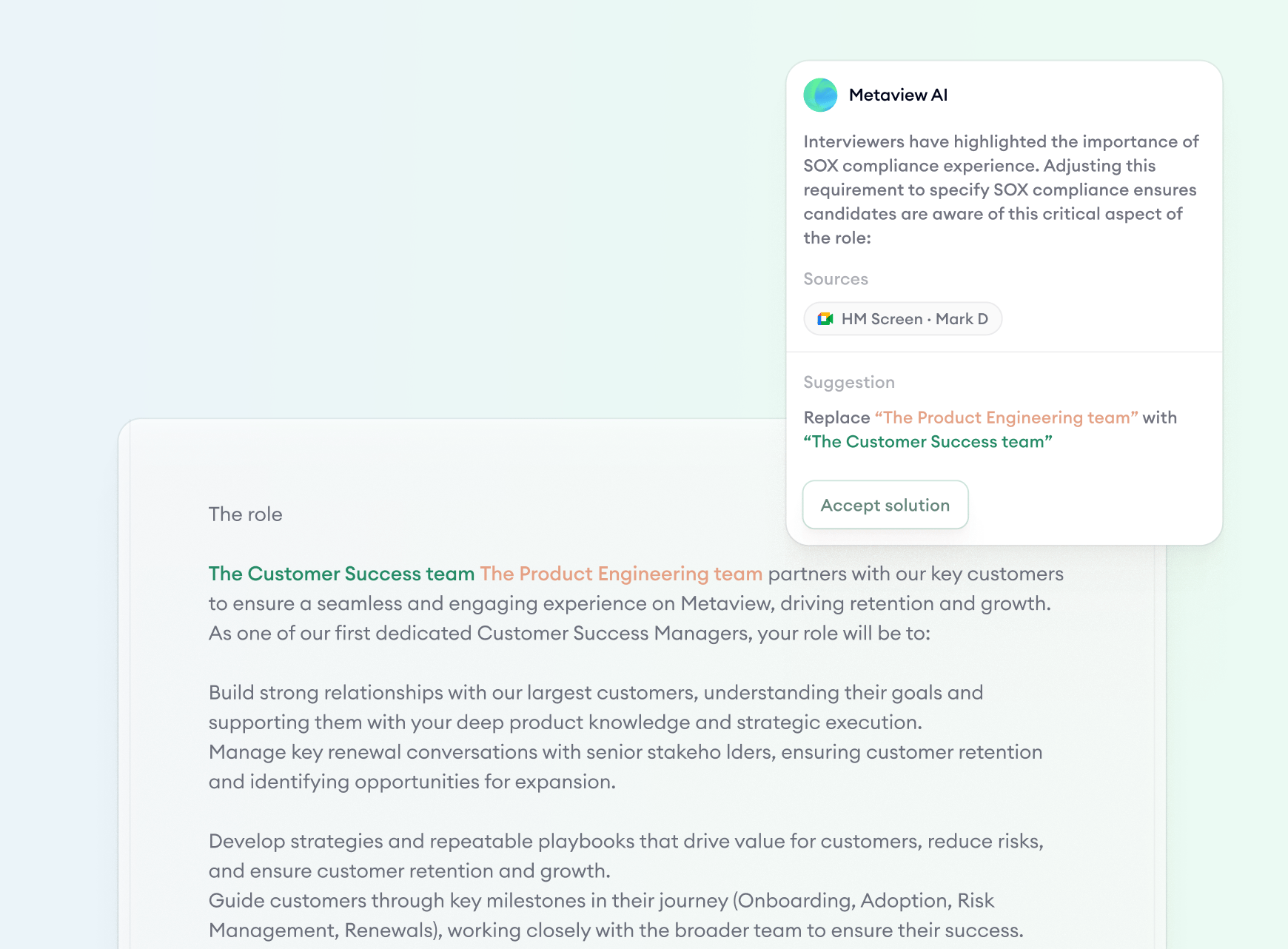
When interviewers keep raising a skill, a responsibility, or a challenge the post leaves out, Job Posts suggests an update. The same goes for something the hiring manager said in the kick-off meeting that never made it into the post. Each suggestion comes with its reason, and a recruiter accepts or edits it before anything changes.
Metaview’s Notetaker joins those conversations and captures every spoken word. So the check starts from what the hiring manager and the interviewers said.
At Metaview, transcription is the first mile of our AI product: if names, roles, companies, and context are wrong, everything downstream gets harder.”

Beyond the interview check, Job Posts also reviews live and draft posts to keep them fresh, compliant, engaging, and on-brand. Your team can write its own checks for your brand guidelines and formatting rules. When a check fails, Job Posts shows why and suggests a fix. You can also open a check and read the prompt it uses.
The interview check works from conversations captured in Metaview. In the short video below, Metaview’s chief executive, Siadhal Magos, explains why taking interview notes is a way of capturing data. His example is a recruiter checking which candidates spoke most about customers, for a hiring manager who wants every hire on the team to be customer-obsessed.
Job Posts suits a team that already records its kick-offs and interviews in Metaview.
2. Datapeople (now JobNav).
Datapeople checks whether a post’s requirements fit its title, and whether the post carries the pay range the law requires where the job is based. Payscale acquired it in September 2025. The product now goes by JobNav.
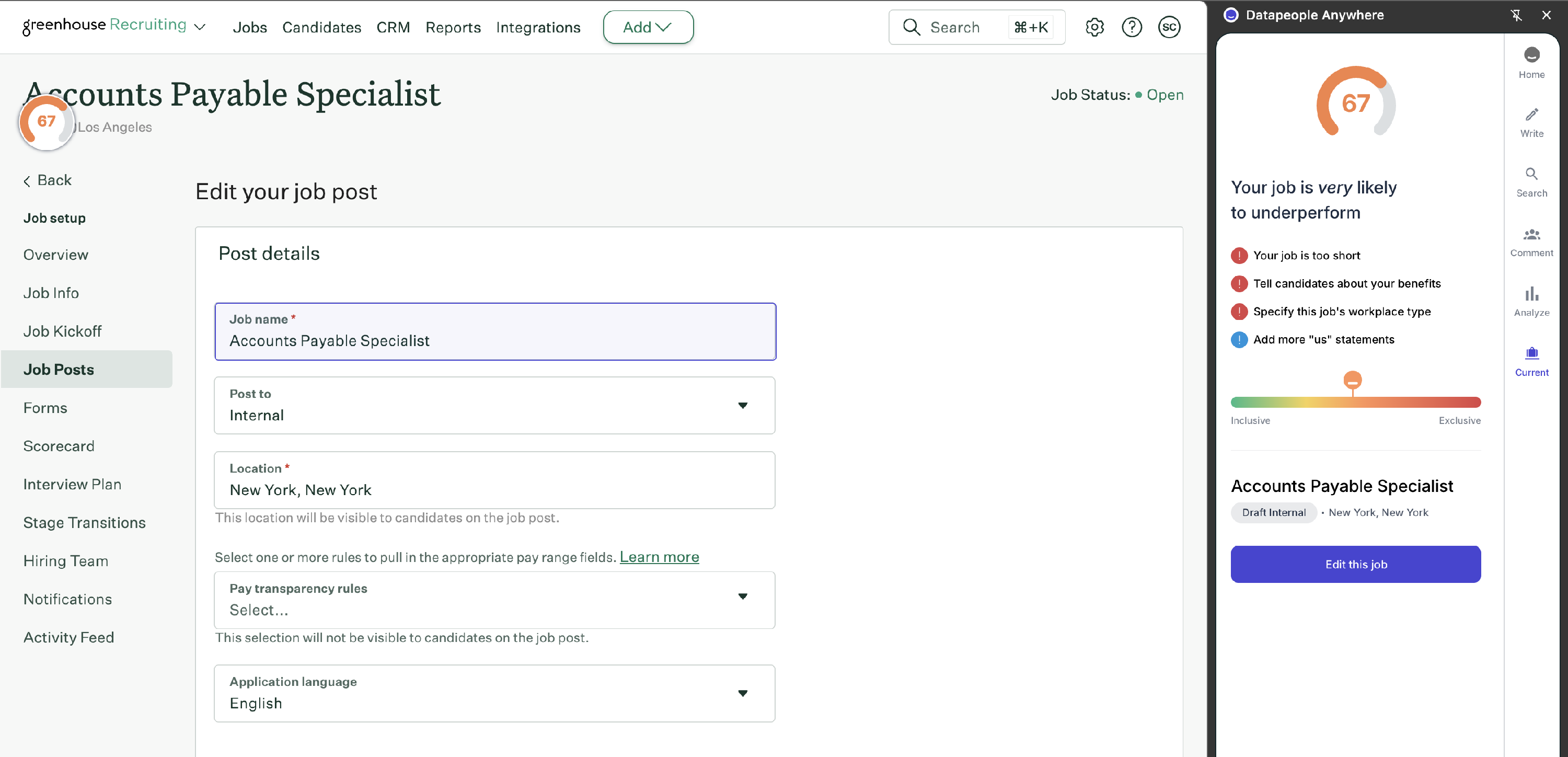
Install its browser extension in Chrome or Edge and open a job post in your ATS. The extension imports the post, scores it out of 100, and lists what to fix in a side panel. It runs on the job post page in Greenhouse, Lever, Workday, and other systems. You can also connect your ATS, or have your jobs imported each day without an integration.
Its score also highlights wordy language and jargon, grammar and spelling, soft skills, and biased language. If the job’s location requires salary disclosure and the post has no pay range, Datapeople shows a red warning. It shows a blue warning when a disclosure law is about to take effect.
Across all your live jobs, its reports show how long each one has been live. They also list jobs that still carry placeholder text, use an outdated template, or are missing a salary, a diversity or accommodation statement, or benefits. Its compliance report puts the jobs with the most issues first and downloads as a spreadsheet. Fix each job in your ATS and republish it from there.
The compliance report covers jobs in places where the law requires a salary. Its guidance isn’t legal advice, so a policy your company adds on top of the law still needs its own review. A talent operations team answerable for compliance across many live posts in many locations gets the most from it.
Datapeople prices by quote. Share an email, and its team will run a compliance check of your public jobs, then follow up with a call.
3. Applied’s job description analysis tool.
Applied’s tool reads the requirements as well as the wording. It highlights must-have words such as “must” and “required,” along with years of experience and degree requirements. It also scores how easy the post is to read, and flags language that might discourage people of certain genders, age groups, or backgrounds from applying.
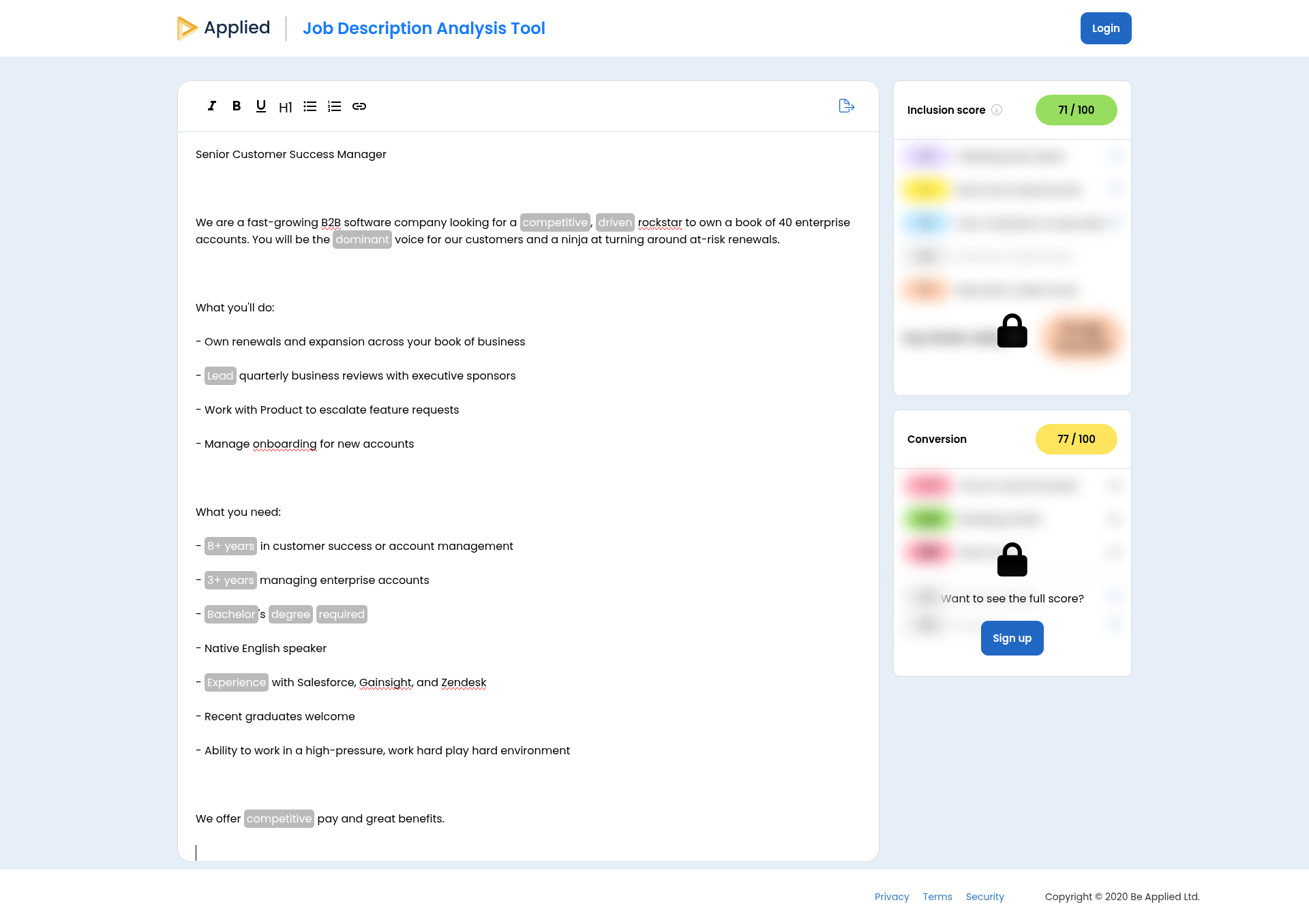
Paste a post into its editor. It returns an inclusion score and a conversion score, and highlights each flagged phrase in the text. The conversion score combines that reading score with the post’s buzzwords, acronyms, and length. You then make the edits yourself. The text is erased when you close or refresh the browser, so save your edits elsewhere before you leave the page.
The basic version runs with no account and shows both scores. The detailed breakdown sits behind a free trial that asks for your name, email, job title, and company.
Applied is now part of Phenom, which announced the acquisition in February 2026. The tool still runs on its own page.
Use it to check the requirements on one post at a time.
4. Ongig Text Analyzer.
Ongig’s Text Analyzer grades existing job descriptions for pay transparency, readability, biased wording, and the job title. It gives each post a total score out of 100.
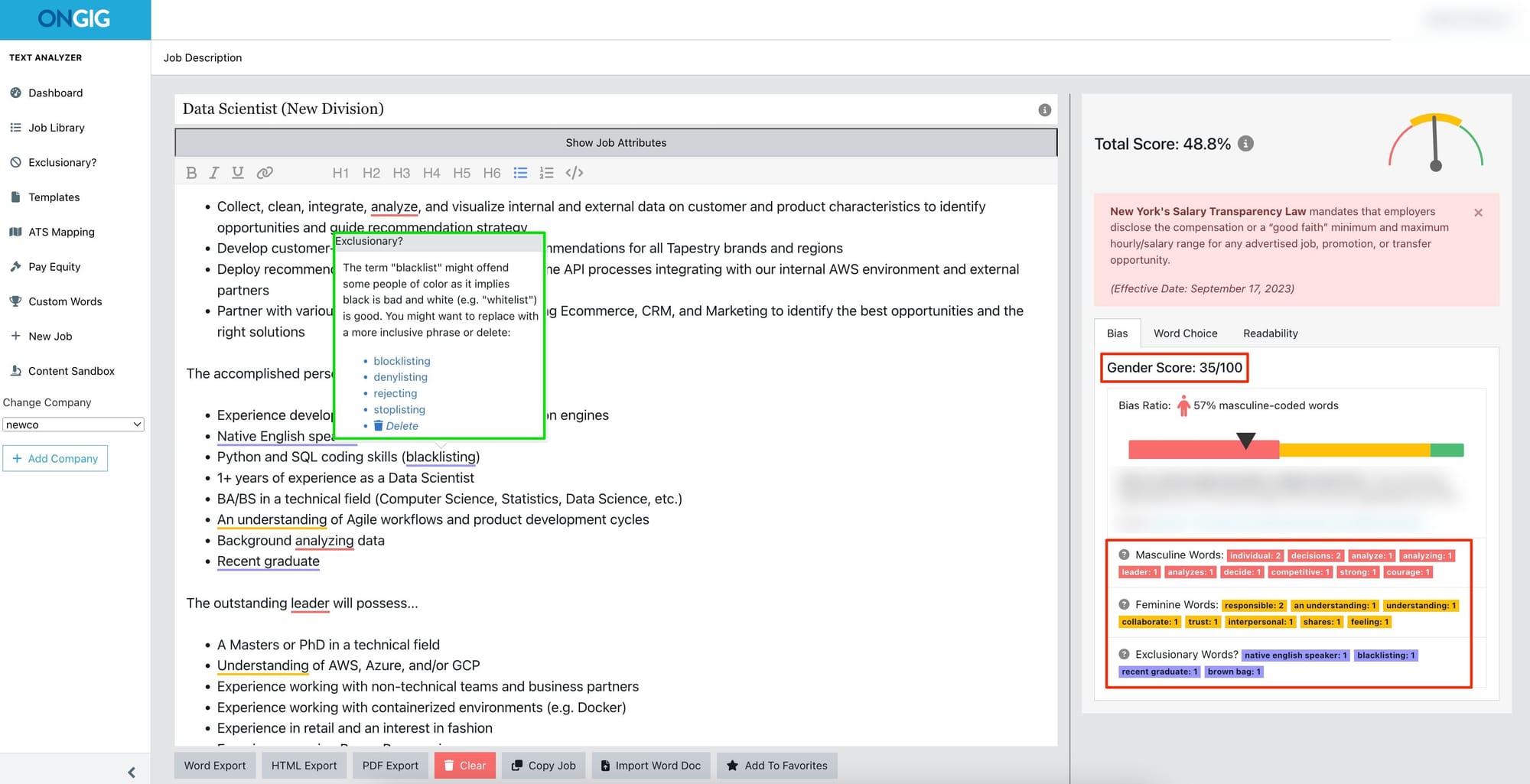
On the entry plan, paste a post in or import it from Word. Higher plans import jobs from your ATS or human resources system, and the top plan also syncs them back to it. Ongig’s API takes a title and a description and returns the scores.
It runs pay transparency checks and prompts for salary and benefits. It flags exclusionary words across gender, age, race, disability, and more, with a gender score for the balance between masculine and feminine wording.
A job content dashboard covers your job descriptions, kept in one repository across departments and locations. Bulk edits update many roles at once, after you preview the changes.
Ongig also writes and rewrites drafts. It suits a team managing a large library of job descriptions, and it’s sold through a demo on annual plans.
5. Textmetrics.
Textmetrics checks reading level and biased wording. It also holds each post to your tone of voice and to two word lists your team sets: words that must appear in every post, and words that may not be used.
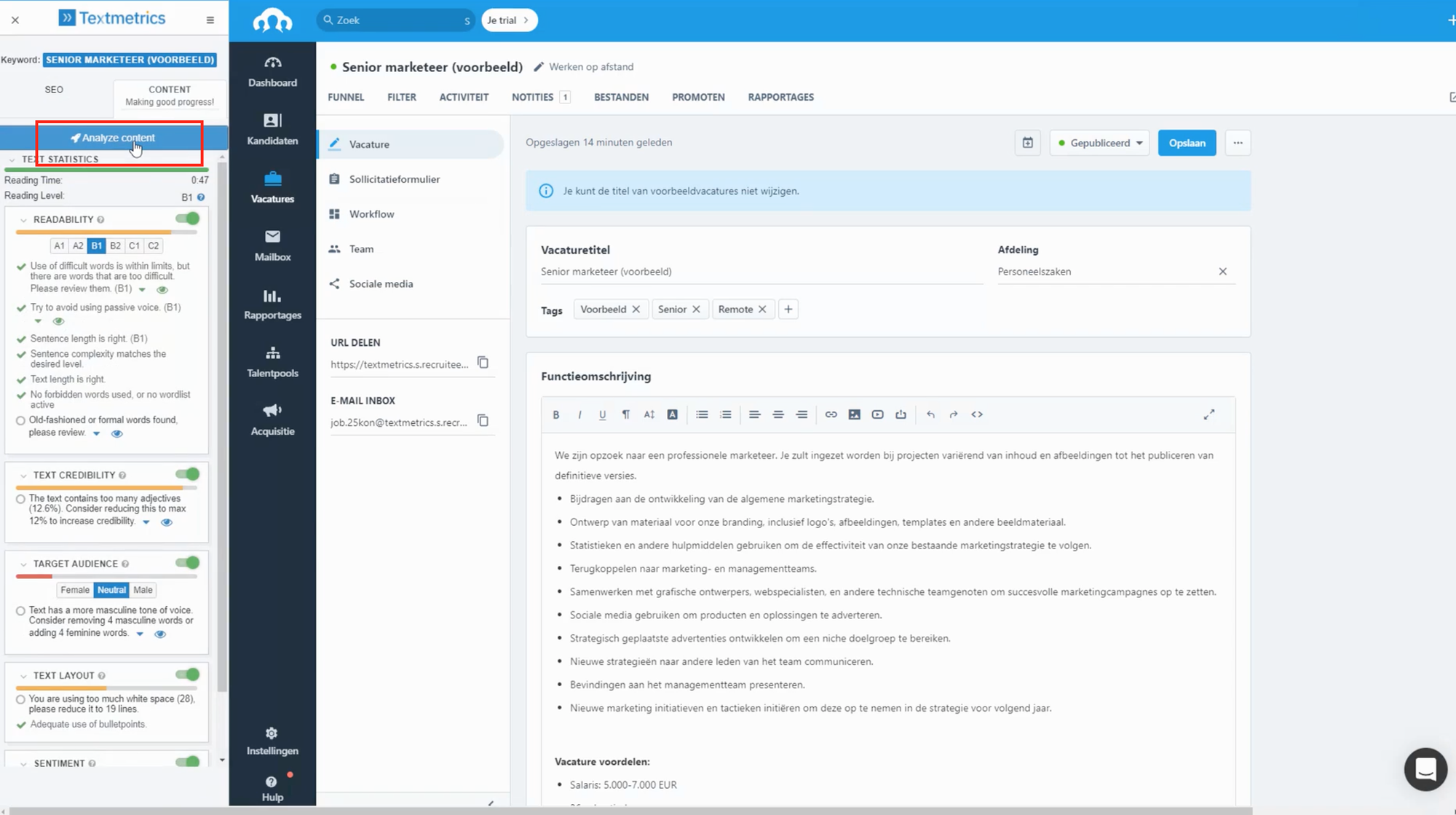
Add its browser extension in Chrome or Edge, and it scores the job description as you edit it inside the ATS. It works with Greenhouse, Lever, Recruitee, and other systems. You can also paste a post in, give it a link, or upload it as a file. Its add-ins work in Word and Google Docs.
To check many posts, import a batch of documents or links at a time. Its monitoring product also reviews your published content against your guidelines. You can also see how departments or countries compare on inclusive language.
Textmetrics is built for content teams, with recruitment as one use. So one set of word lists can cover your careers pages and the rest of your writing.
Pricing is by quote, and you pay for use in credits.
6. Readable.
Readable scores how easy a post is to read with several readability formulas and grades it from A to E. It marks the passages that need work and checks spelling and tone.
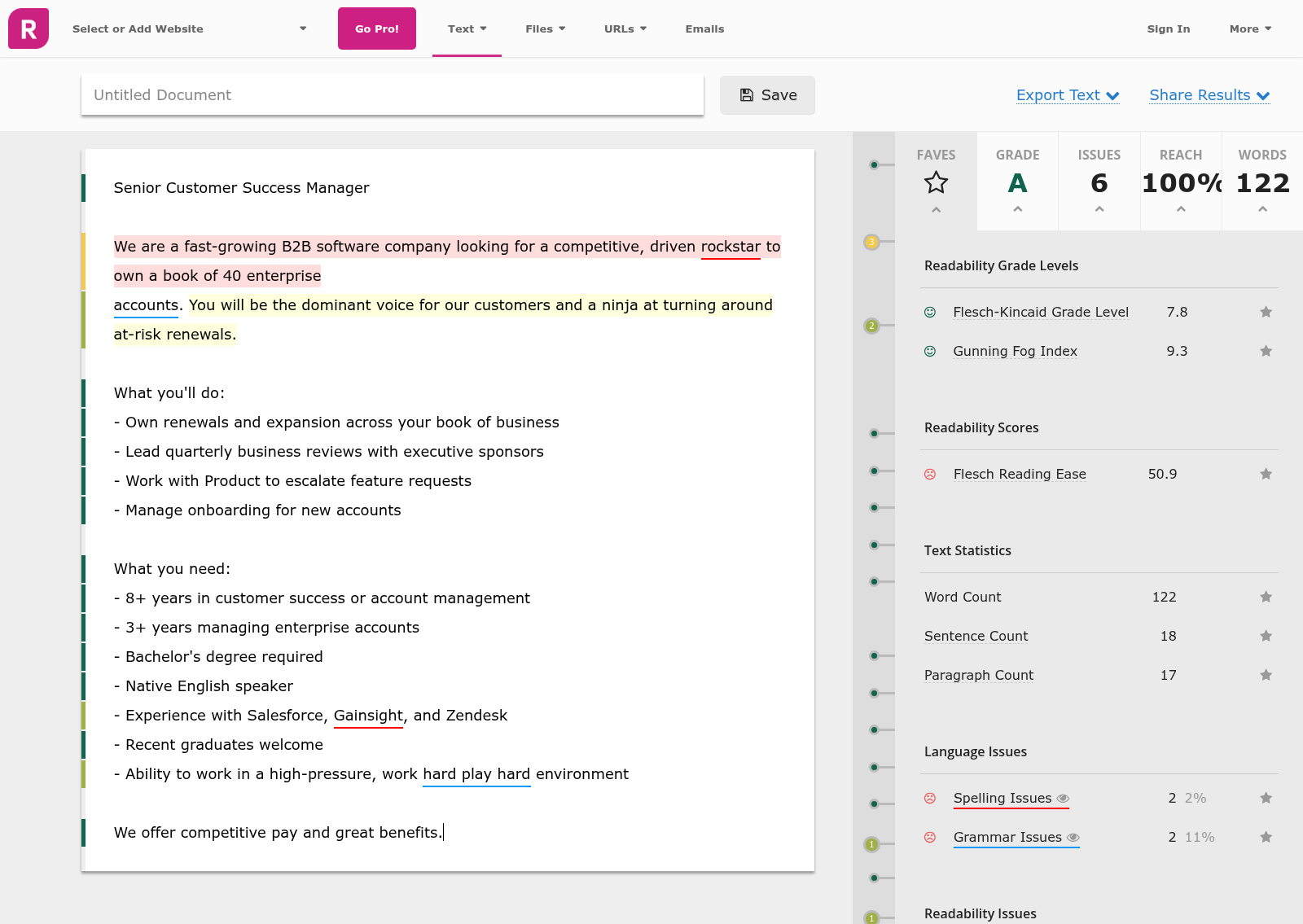
To check a large number of posts, upload a spreadsheet of links to your live posts, or point it at your careers site’s sitemap. It scores every page individually.
Readable is built for writers of every kind, so the grade is about reading ease and tone in any text. It treats every line break as the end of a sentence. So if you paste a post with its bullet points, it reads each bullet as a very short sentence.
Readable is free for occasional use. Bulk scoring comes with the paid plans, which start with a free trial.
7. Hemingway Editor.
Hemingway Editor gives a post a reading grade and highlights the sentences that are hard or very hard to read. It also marks passive voice and words with simpler alternatives.
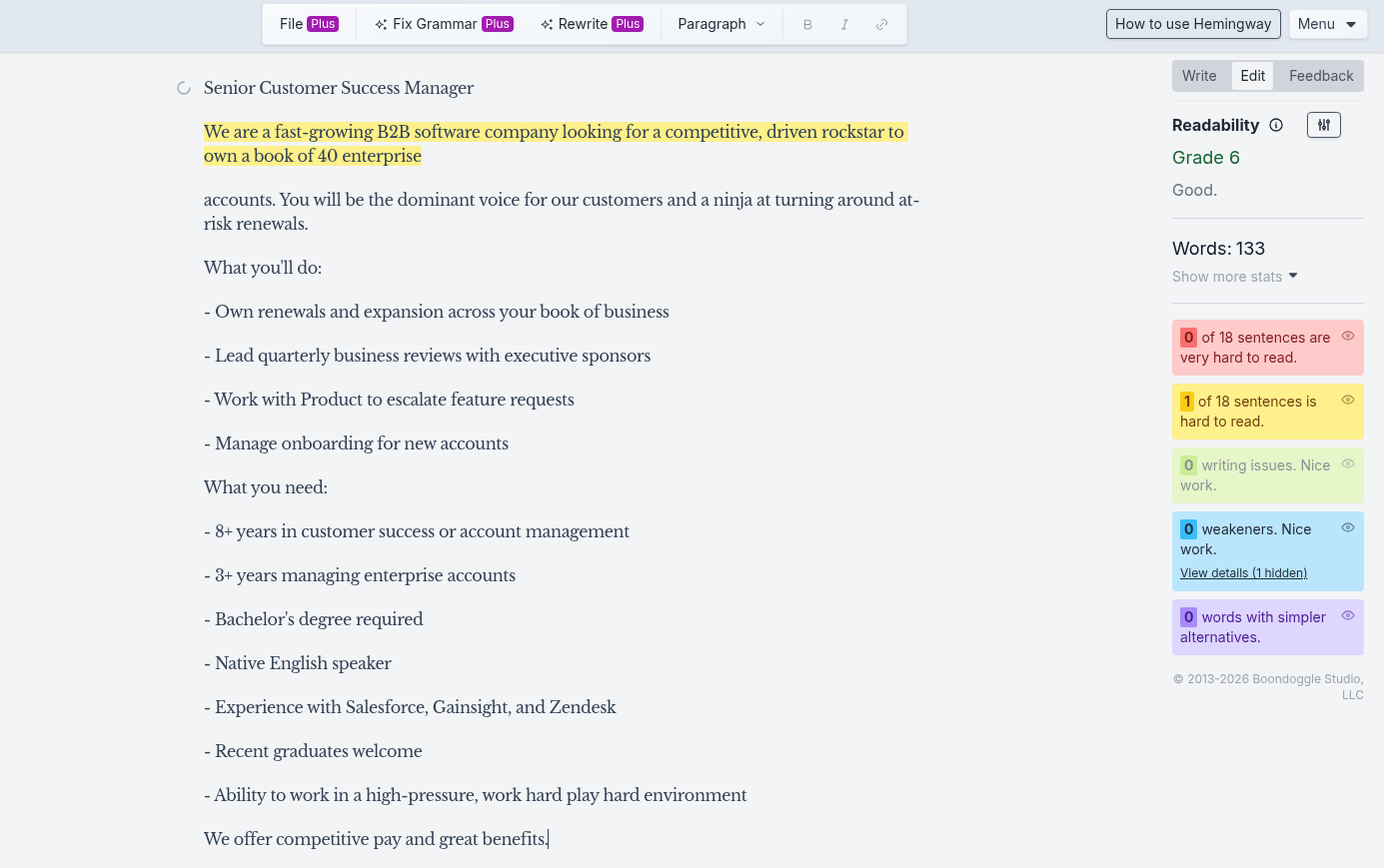
Paste the post into the free web editor, and the grade updates as you edit. Grammar checks and file import come with the paid plan.
It’s a general writing editor that takes one post at a time. So save it for tightening a single post, live or in draft.
8. Develop Diverse.
Develop Diverse gives each job ad an inclusivity score and highlights wording that could put off candidates because of their gender, age, ethnicity, disability, or neurodiversity. It scores readability and length too.
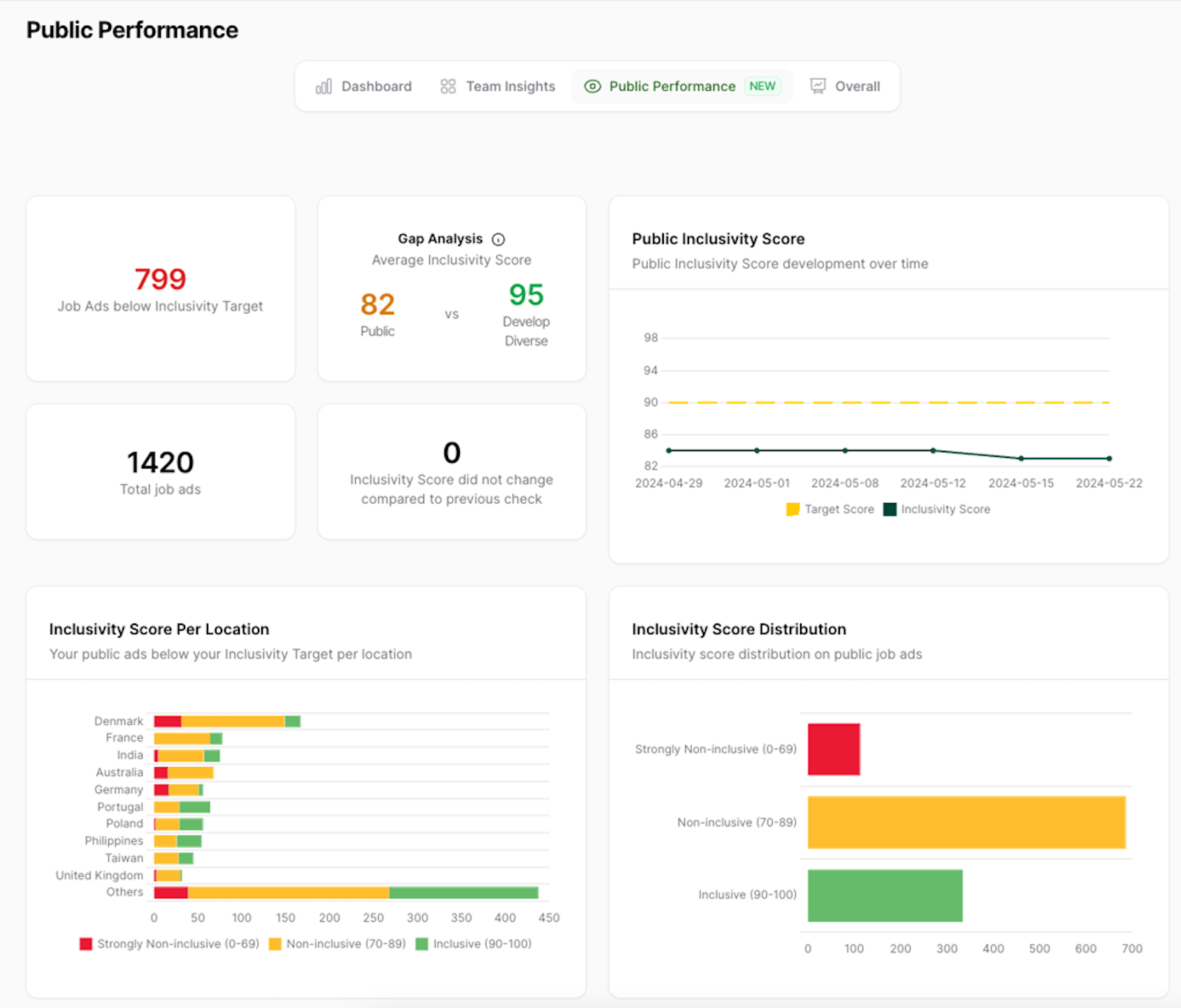
Start in its editor, or search for a requisition from your ATS and sync the edited ad back. A quality gate can hold that sync until the ad reaches your team’s inclusivity target. It connects to Greenhouse, Workday, Teamtailor, and other systems. A Word add-in comes with its Professional plan.
For posts already live, it scans your public job ads and tracks their scores over time. It also shows where the ads you’ve published on LinkedIn differ from what was written in Develop Diverse.
Add your company’s own terms, and Develop Diverse leaves them out of its bias analysis, so your brand words aren’t flagged. If you post Polish job ads, its legal compliance check covers them.
Pick it if your first concern is biased wording across many posts. Develop Diverse is sold on a quote.
9. UInclude.
UInclude scores a pasted job ad for inclusion and flags wording tied to gender, race, disability, or age. It also has a gender tone meter, and it warns you when your tone is too tense or formal.
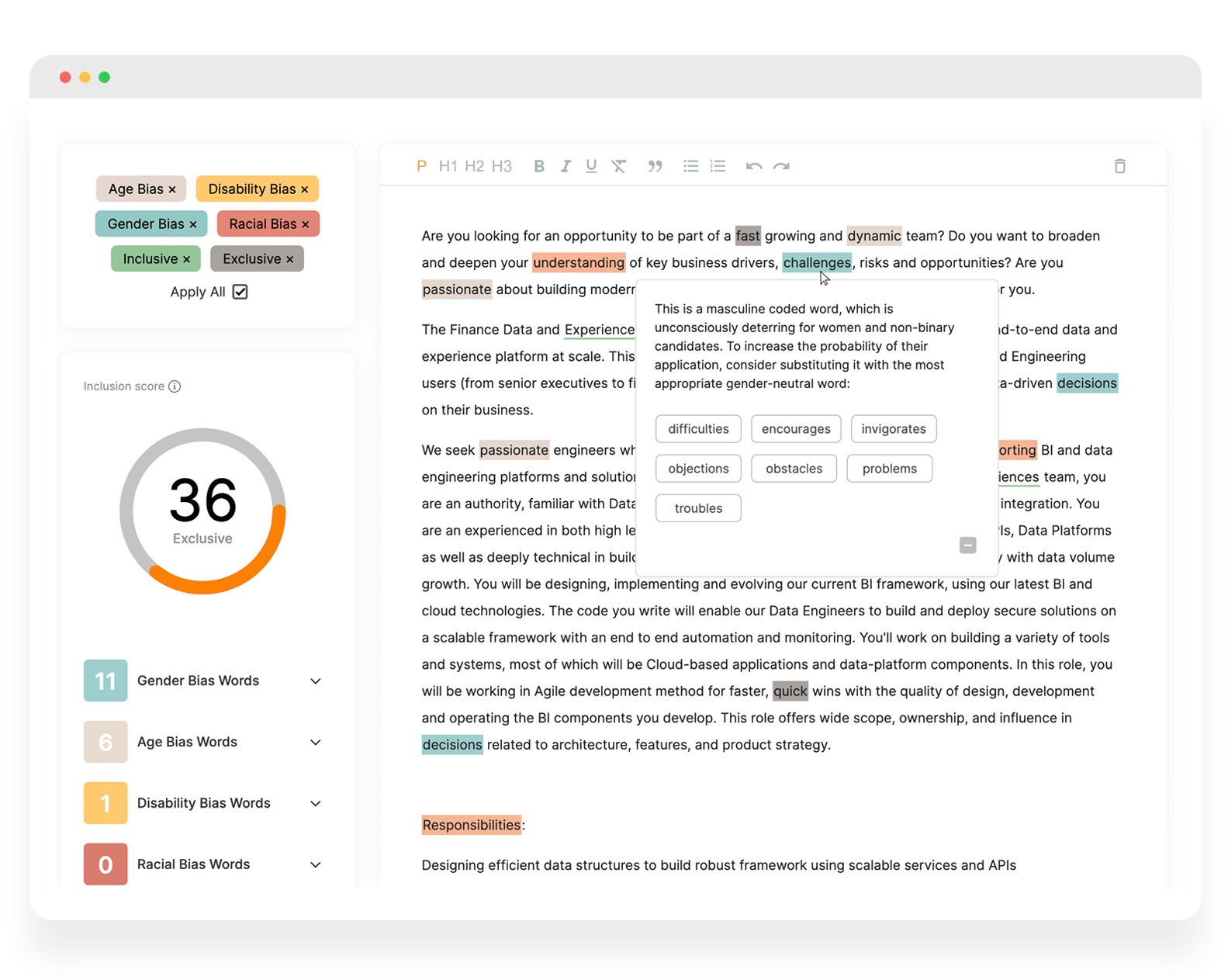
You paste the ad into a text box, and UInclude doesn’t save the text or the score. The plan on its pricing page caps how many ads a team can edit each month. Sign up to start a trial.
A small team can run a bias pass on each ad this way without connecting anything to its ATS.
10. Gender Decoder.
Gender Decoder counts the words in a job ad that research has coded as masculine or feminine. It then gives a verdict on which way the ad leans. Its word lists come from a 2011 research paper by Danielle Gaucher, Justin Friesen, and Aaron C. Kay on gendered wording in job advertisements.
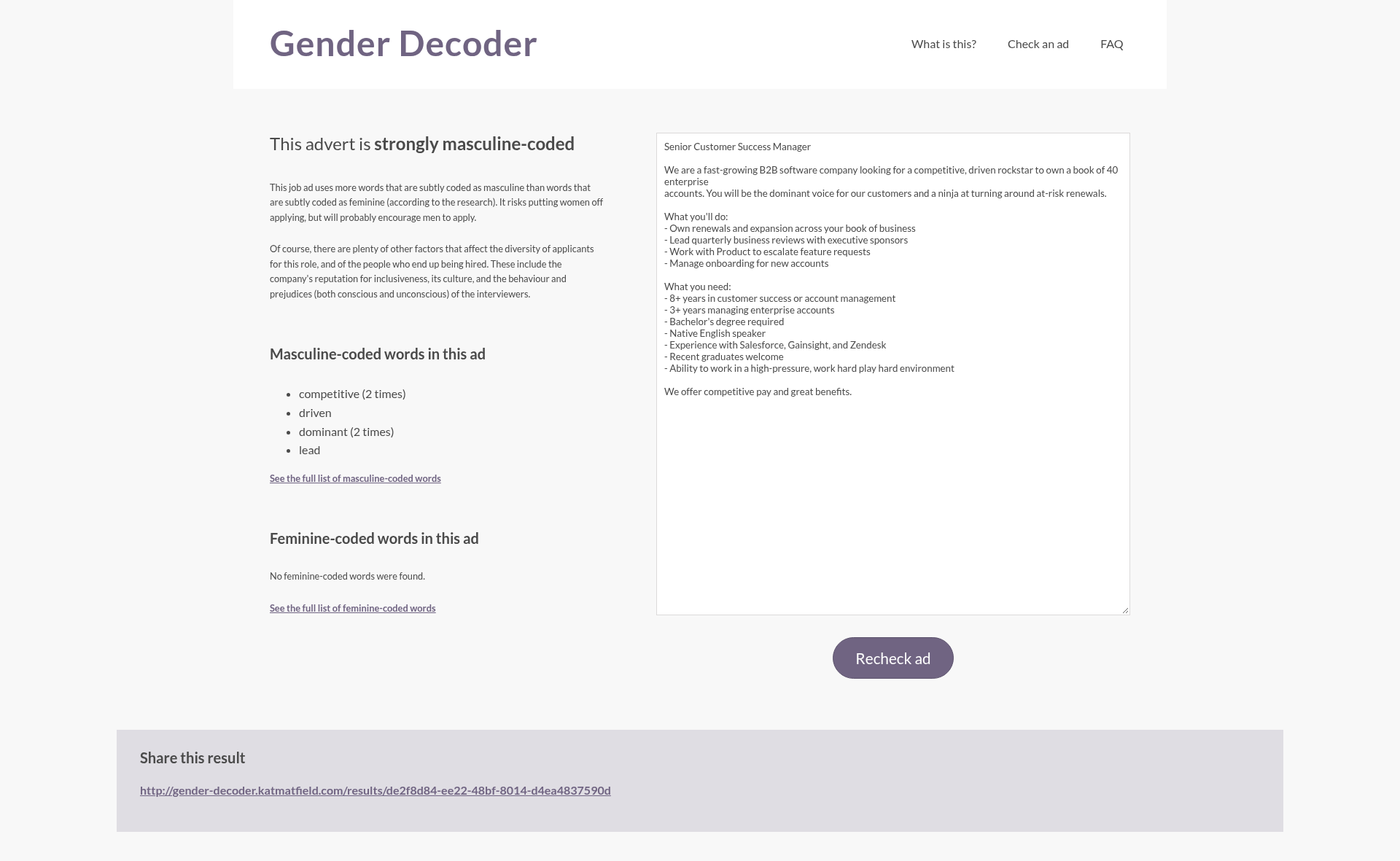
Paste the ad into the box and run the check. You don’t need an account. It checks English text, and only for gendered wording.
It saves the text you paste and its result to a database, so leave unannounced roles out of it. Treat it as a quick first pass on gendered wording before a post goes to a fuller check.
Which job description checker to run on the posts you already have.
Match the checker to the problem in your live posts. Each situation below names the tool I’d pick and why.
- No budget yet: paste each post into Applied’s basic version and into Gender Decoder. Neither needs an account, and between them they cover requirement wording, readability, and gendered words.
- Plain language across your careers site: give Readable a spreadsheet of links to your live posts and fix the lowest grades first.
- Editing inside the ATS: add the Datapeople or Textmetrics browser extension, so the score sits beside the post while you change it.
- Requirements that may have moved since the kick-off meeting: paste the post into Applied, which highlights must-have words, years of experience, and degree requirements. Then compare what it highlights with what the hiring manager wants now.
- Reporting on biased wording across teams: Develop Diverse tracks the scores of your published ads over time, and Textmetrics compares departments and countries.
- Posts in locations with pay disclosure laws: run Datapeople or Ongig across all your live posts, because both check for the pay range those laws require.
If you check requirements by hand, our guide to job description drift covers how to spot a post whose requirements moved once interviews began.
On the posts you already have, check what each one asks for first: whether its requirements still fit the role, and whether it carries the pay range its location requires. Fix the posts that fail. Then run one wording check across all your live posts. A post fixed in that order gets its words polished once, after it asks for the right things.
Keep every live post in step with the role you’re hiring for.
Metaview Job Posts, for the recruiting team that owns your job posts.
Frequently asked.
Is a high score enough to publish a job post?
No. Read the requirements yourself against what the hiring manager wants today. Scores also don’t carry over between tools: Datapeople and Ongig score a post out of 100, while Readable grades it from A to E. So agree with your team which score you’ll act on, and the mark a post has to reach.
How often should I check posts that are already live?
I’d check a post whenever the hiring manager changes what they want. Beyond that, check every live post on a schedule your team will keep. Start with the posts that have been live the longest, because they’ve had the most time to fall behind the role.
Do I need a paid checker if a free one already works for us?
Most of the free versions on this list read one pasted post at a time. The ways to check every live post at once, through your ATS or a list of links, come with paid plans. So the choice turns on how many posts you have live.
Who should own job post checks on a recruiting team?
Give the reports that cover all your live posts to whoever runs talent operations. Give each post’s requirements to the recruiter and the hiring manager who own the role. The recruiter and the hiring manager decide what each flagged line should say, because they know what the role needs now.
