

You’re reading applications for a warehouse shift that starts at 6 a.m. One applicant gave only a ZIP code, and another has no car and lives across the river from the site. Their resumes can’t tell you whether either of them will get there on time.
This guide is for recruiters doing location fit screening on roles like that one. That means checking where an applicant is based and how long it takes them to get to the site for the start of the shift.
It compares eight tools that place an applicant on a map or time the trip. They come in three kinds: geocoders that place an address, drive-time maps that work from a spreadsheet, and travel-time application programming interfaces (APIs) that a developer calls from code. It ends with which tool to choose for your application form and your team, and how to handle a commute that looks long.
I’d treat a commute figure as one input a recruiter reads, never an automatic cutoff.
The 8 location fit screening tools at a glance.
Here’s how the eight compare on what each one measures and who it suits:
| Tool | Kind | What it measures | Best for |
|---|---|---|---|
| Geocodio | Geocoder | A point for each address, with an accuracy grade | Spotting points placed only by ZIP code |
| Smarty | Geocoder | A point for a street address, with a precision level | Forms that collect full street addresses |
| Google Geocoding API | Geocoder | A point for an address, labeled for precision | Geocoding inside a careers site |
| Mapline | Drive-time map | A drive time added to each spreadsheet row | Recruiters working from an applicant export |
| Maptive | Drive-time map | A count of locations inside a drive-time area | Counting applicants within a drive time |
| TravelTime | Travel-time API | Reachable areas, and travel times for a list of points | Transit commutes to an early start |
| Google Routes API | Travel-time API | A travel time and distance for each applicant and site pair | Batches of applicants and sites |
| Mapbox Isochrone API | Travel-time API | Several reachable areas around a site in one request | Drive-time areas on a careers site |
What is location fit screening?
Location fit screening is the part of reading an application that checks whether the commute works, for a specific applicant, at the hours a specific job runs. It’s most useful for roles tied to one site with fixed start times, such as shift work.
The simplest version is to ask. Name the site and the shift’s start on the posting or the form, and ask applicants whether they can make it reliably.
Measuring the trip takes two steps, plus a choice about where to run them:
- Place the applicant: a geocoder turns the address on the form into a point on a map.
- Time the trip from that point to the site, by road or by transit.
- Choose where the calculation runs: a spreadsheet tool, or an API called from your careers site or applicant tracking system (ATS).
For a remote role, location fit usually means time zones or where someone is allowed to work. That’s a different check from the one in this guide.
We have a separate guide to sourcing for multi-location hiring. It covers where remote candidates fit when one role is open in several cities. That includes the countries or states where you can employ someone, and the working hours a new hire needs to share with the team.
How we chose these eight.
The eight are numbered in the order a commute check runs, from placing the applicant to timing the trip. We judged each one on three questions:
- Location: Does it place the applicant, with a grade for how precise the placement is?
- Travel time: Does it time the trip on real roads or by transit, for the shift’s start time?
- Who runs it: Can a recruiter use it from a spreadsheet, or does it need a developer?
Of the three, location comes first, because every drive time starts from the point a geocoder placed.
Geocoders: where the applicant is.
Geocodio, Smarty, and Google’s Geocoding API place an address on a map and grade how precise that point is. They differ mainly in how they label that precision.
1. Geocodio: Best for spotting ZIP-level points.

Geocodio places addresses on a map and grades every result with an accuracy type and an accuracy score.
The type says what the point stands for. An applicant whose address is just a ZIP code gets a point in the middle of that area, wherever they live, and the type marks it as rough.
Read the type and the score together, and decide which points are precise enough to time a commute from.
Key features:
- Accuracy types: “rooftop” for the exact parcel, “place” for a ZIP code or city, and county and state types below that.
- Accuracy scores: a score beside every type, for filtering results.
Best for: Recruiting operations teams that want to spot rough, ZIP-level points before anyone measures a commute from them.
Pricing: Geocodio charges per lookup after a free daily allowance, or sells monthly and yearly plans, including a flat-fee unlimited plan for high volumes.
2. Smarty: Best for forms that ask for a full street address.
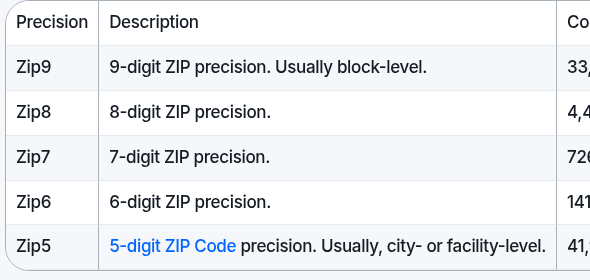
Smarty geocodes addresses and grades how precisely it matched each one.
That grade depends on what the form collected. A full street address can get a rooftop point, while a match to a ZIP code alone is usually much rougher.
Key features:
- Rooftop geocoding: a point on the building itself.
- ZIP code grades: usually block level for a nine-digit ZIP code, and usually city level for a five-digit one.
Best for: Teams whose application form already collects the full street address.
Pricing: Smarty starts with a free trial, then sells annual subscriptions and custom plans.
3. Google Geocoding API: Best for developers building geocoding into hiring systems.

Google’s Geocoding API gives each address a point and labels it with one of four “location_type” values.
For a commute, I’d trust “ROOFTOP” most and treat “APPROXIMATE” with the most care. A developer can read the value before passing the point to a travel-time tool.
There’s no spreadsheet route here. A developer has to call it from code.
Key features:
- “ROOFTOP”: a precise point, accurate to the street address.
- “RANGE_INTERPOLATED”: an estimate between two precise points, such as intersections on a road.
- “GEOMETRIC_CENTER”: the middle of a whole street or region.
- “APPROXIMATE”: the least precise of the four.
Best for: Careers sites and ATS integrations that need geocoding built in.
Pricing: Google bills it per request, after a free allowance each month.
Drive-time maps from a spreadsheet.
Mapline and Maptive both draw drive-time polygons: map shapes that show how far someone can drive from a point in a set time. They work from a spreadsheet of locations, so a recruiter with an applicant export can use them without writing code.
4. Mapline: Best for a drive time on every row.
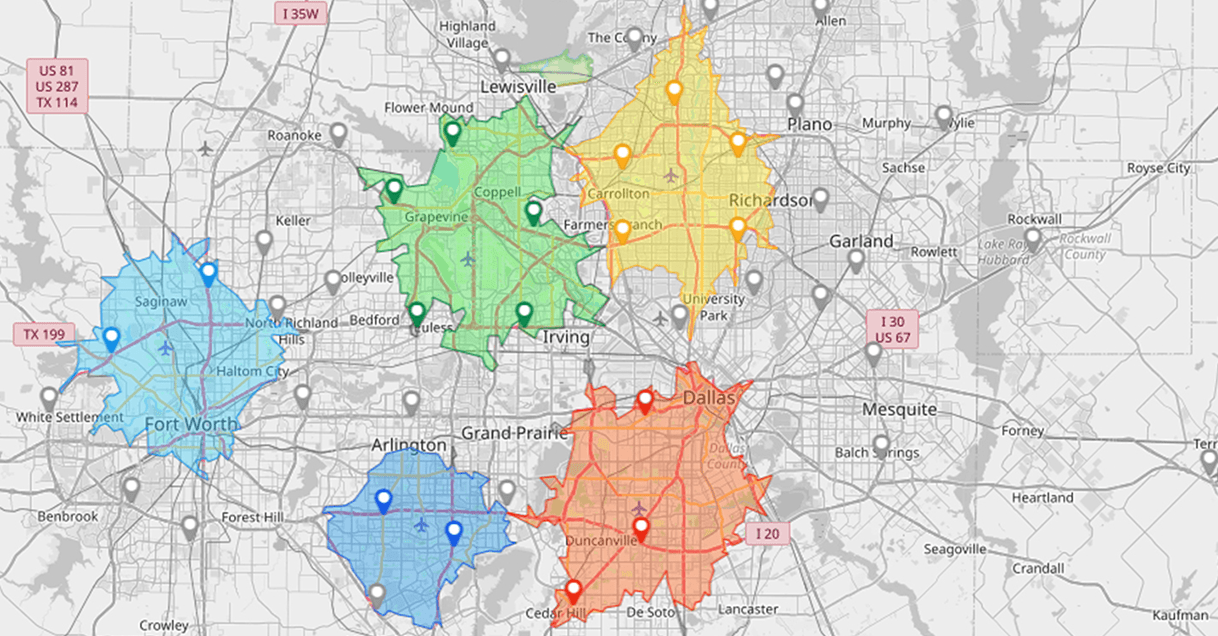
Mapline maps spreadsheet data and can add a drive time to each row.
Its “Distance and Drive Time” column writes an estimated drive time, or a distance, into every row of the sheet. Run it on an applicant export, and each applicant gets a drive time next to their name.
Each figure is a driving estimate, which says little about anyone who commutes by bus.
Key features:
- Distance options: a straight line, a distance by road, or an estimated drive time.
- Polygons that follow roads: the area reachable within a set drive time.
- Radius circles: straight-line distance in every direction, to compare with the road-based areas.
Best for: A recruiter who wants a drive time per applicant from a spreadsheet, without code.
Pricing: Mapline has a free Starter Plan that doesn’t expire, with paid Pro and Enterprise plans sold as annual subscriptions.
5. Maptive: Best for sizing the applicant pool around a site.
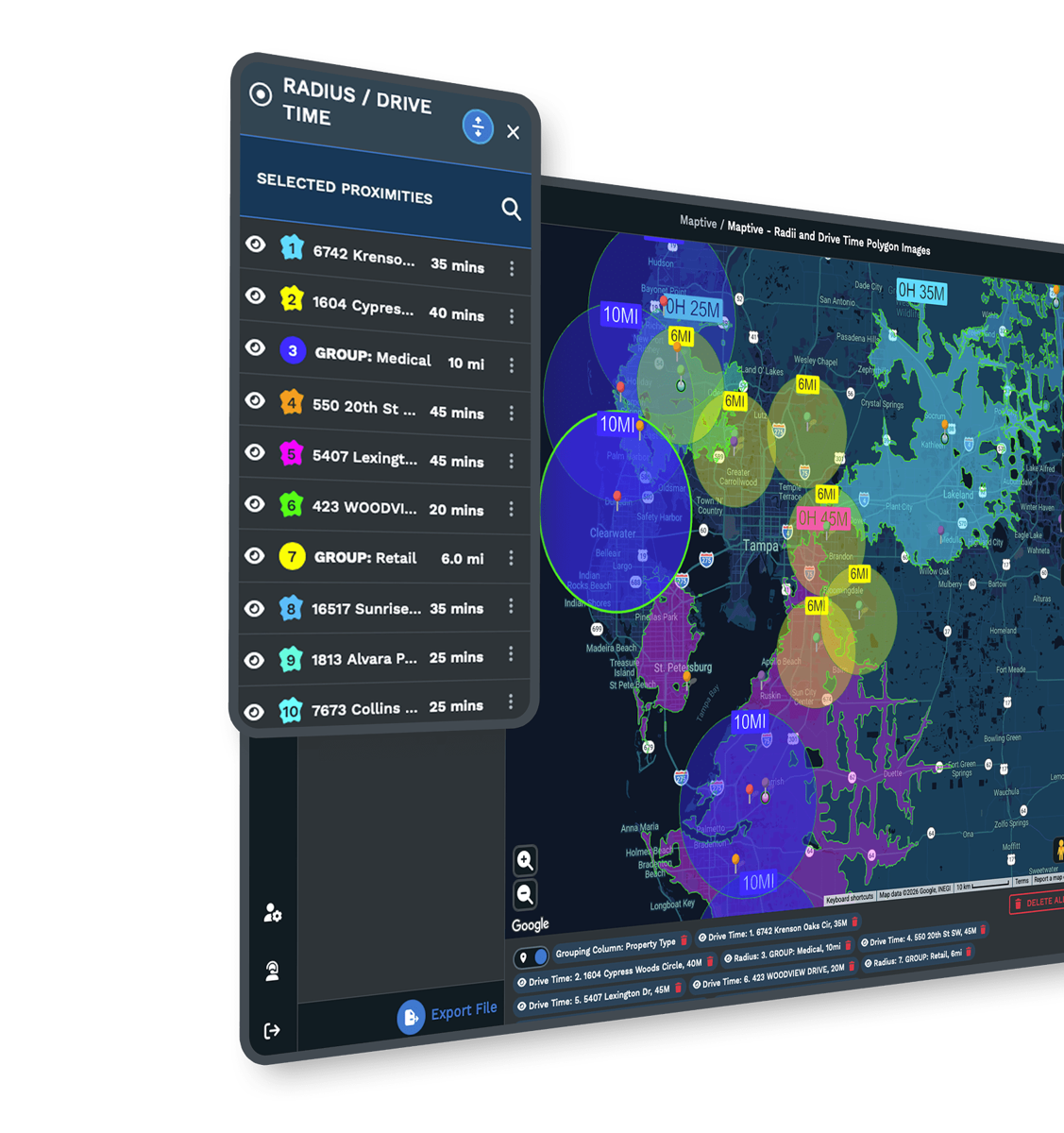
Maptive draws drive-time polygons around the locations in an uploaded spreadsheet.
To count the applicants within a set drive of a site, upload their locations, then click the drive-time polygon drawn around the site. A panel shows the site’s address and how many of the uploaded locations sit inside it. The polygon follows the roads, so a river that a radius would ignore can split the area in two.
The count gives no trip time for any one applicant.
Key features:
- Drive-time polygons: reachable areas drawn around uploaded locations.
- Radius comparison: radius circles and drive-time areas on one map.
Best for: Recruiters who want to know how many applicants live within reach before reading applications one by one.
Pricing: Maptive has a free trial. After that, plans are priced by users and data volume and billed monthly or annually, and there’s also a short-term pass.
Travel-time APIs.
TravelTime, the Google Routes API, and the Mapbox Isochrone API are called from code, so they need a developer, usually to connect them to your careers site or ATS. Once connected, TravelTime and the Routes API can time each applicant’s trip without anyone looking it up, and Mapbox shows the area within reach of a site. They differ most in how they handle transit.
6. TravelTime: Best for early shifts and transit riders.
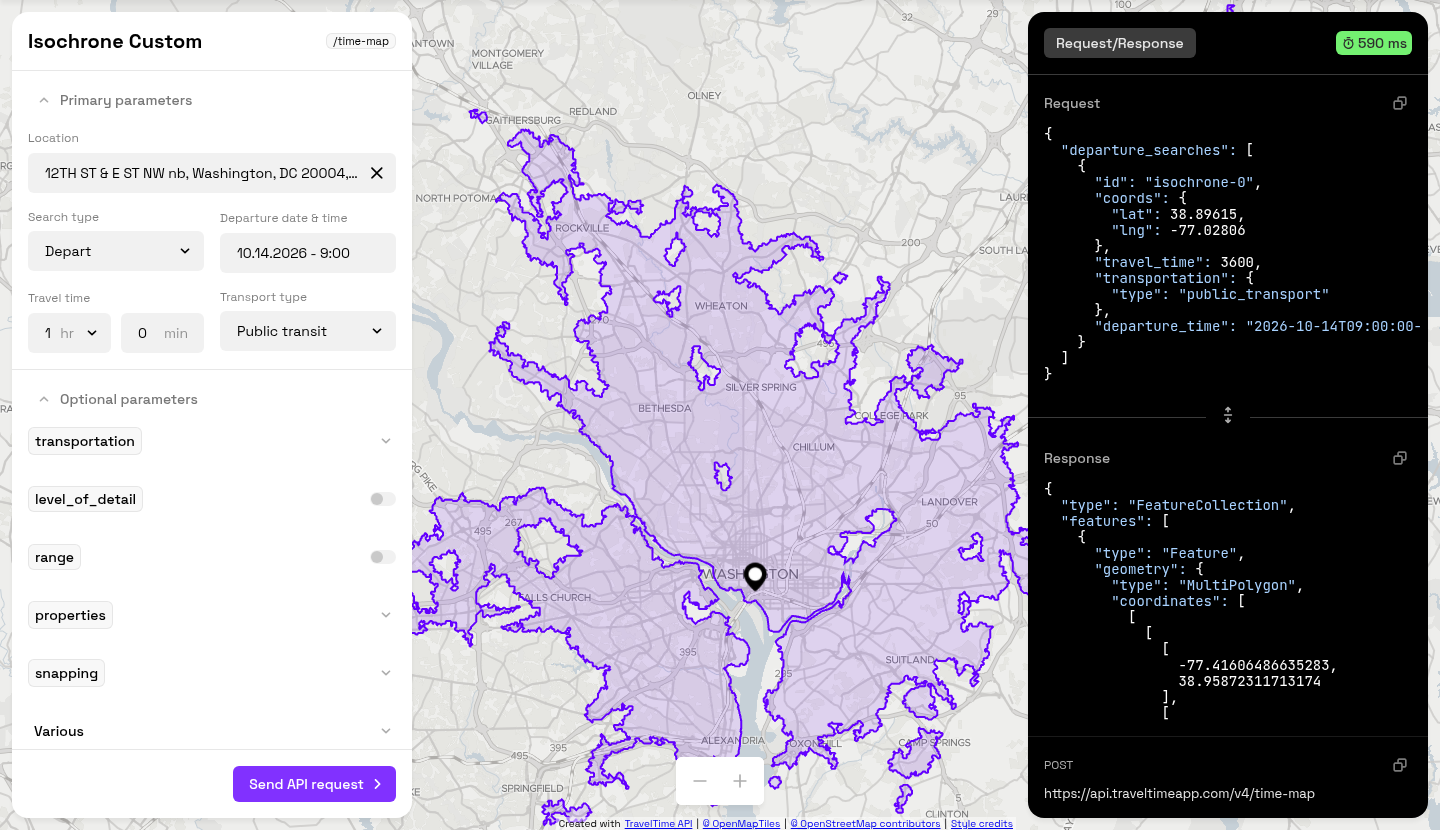
TravelTime times transit and car trips, and it can work back from the time someone has to arrive.
Its isochrone search draws the area from which someone can reach the site within a set travel time, and you check whether the applicant’s point falls inside it. Set it to arrive by 6 a.m. by public transport, and it estimates whether an applicant who takes the bus can get there for the shift.
Its batch search, “Time Filter,” has a faster version, “Time Filter Fast,” that uses weekday-morning travel times only. I’d keep that one for weekday shifts that start in the morning.
Key features:
- Travel modes: “walking,” “public_transport,” “driving,” and “cycling.”
- “Time Filter”: a travel time for every location in a batch, at a set time of day.
Best for: Hourly roles where many applicants don’t drive and the shift starts early.
Pricing: Developer keys for testing are free, and commercial use needs an annual subscription priced by how many requests a minute you need.
7. Google Routes API: Best for timing applicants against job sites.
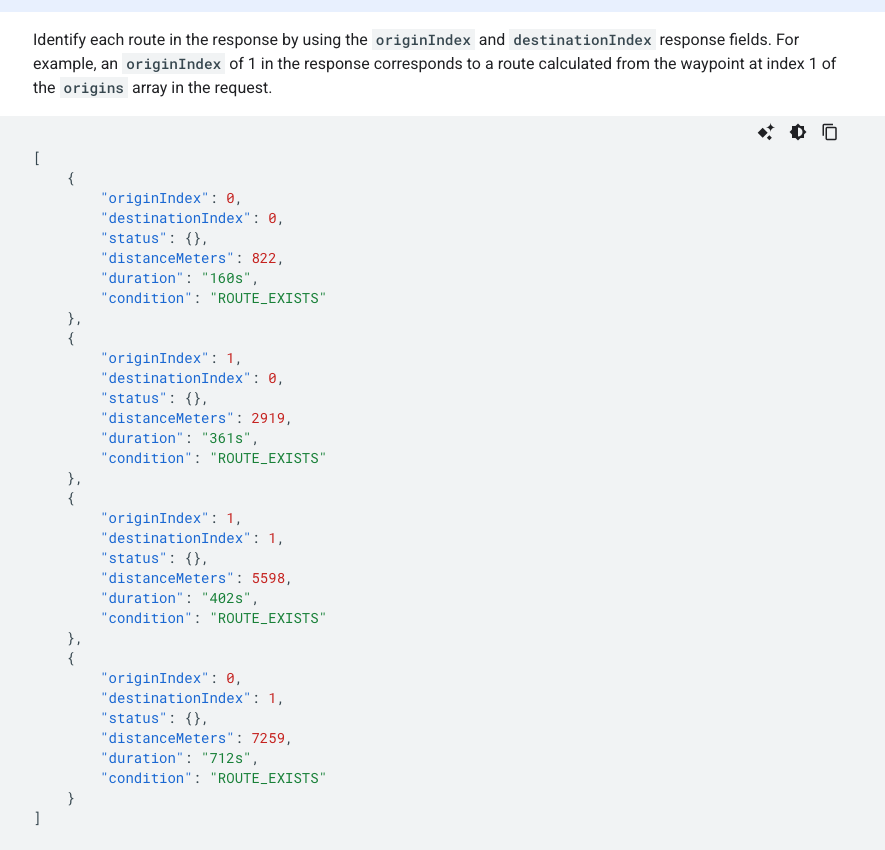
Google’s Routes API times applicants against sites. It returns a route matrix: a travel time and a distance from each start point to each destination, such as from each applicant to each job site.
In transit mode (“TRANSIT”), you can set the time the trip has to arrive by. You can’t set an arrival time for a driving trip.
Key features:
- Route matrix: applicant and site pairs in one request.
- Traffic: “TRAFFIC_AWARE_OPTIMAL,” Google’s most thorough traffic setting.
Best for: A developer timing a batch of applicants against your job sites.
Pricing: Like the Geocoding API, it’s free up to a monthly allowance, then billed per request.
8. Mapbox Isochrone API: Best for mapping how far applicants can drive.
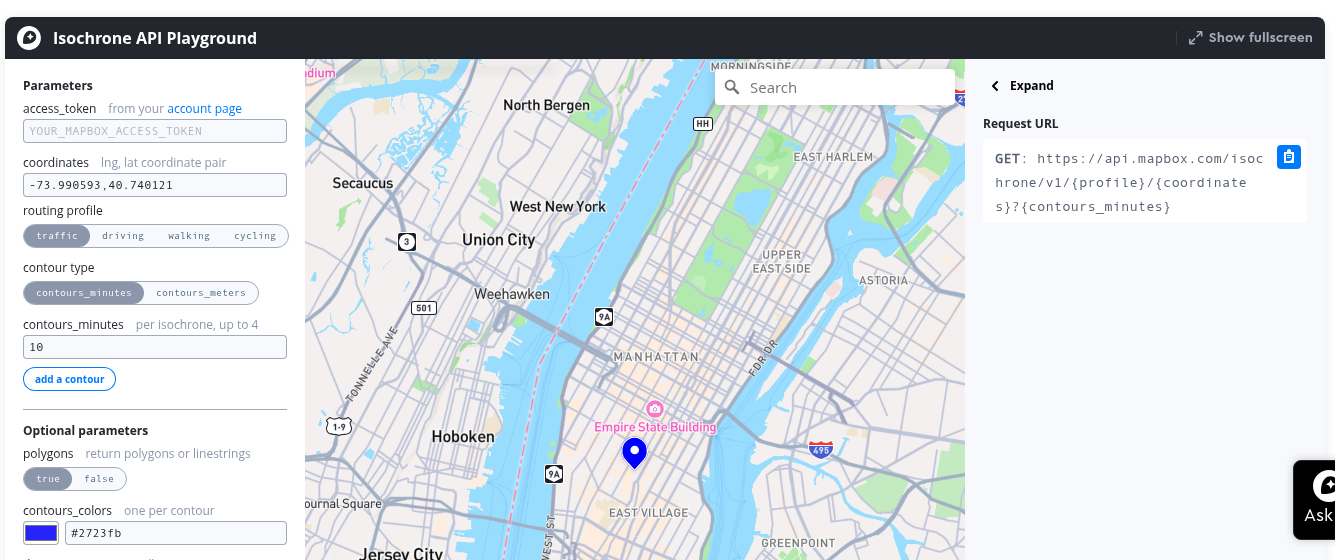
Mapbox’s Isochrone API draws reachable areas around a point for a set travel time.
One request can return several isochrone contours, the outlines of areas reachable within different times. That lets you show a 20-minute and a 45-minute drive around a job site at once.
Mapbox has no transit mode. It suits sites where few applicants rely on buses or trains.
Key features:
- Traffic: the “driving-traffic” mode, which uses current and historic traffic.
- Travel modes: “driving,” “driving-traffic,” “walking,” and “cycling.”
Best for: A careers site that maps reachable areas around job sites, for applicants who mostly drive.
Pricing: Mapbox bills per request, with a free tier of requests each month.
How to choose a location fit tool.
Run these three checks on the tools you shortlist before you rely on one:
Check how precise each point is.
If your form collects a street address, look at each point’s precision label before you trust a drive time built on it. Some addresses still match only to their ZIP code. If the form collects only a ZIP code, read every drive time as starting from that ZIP code’s center.
Match the travel mode and the start time.
Set the travel mode to how your applicants get there, and time the trip so it arrives by the shift’s start. This counts most when many applicants ride a bus or train to an early shift.
Try a tool on a past applicant export.
Before you use a tool on a live role, run it on applications you’ve already reviewed, and check the results by hand against the addresses. Look for points placed in the middle of a ZIP code, and for drive times that don’t match the trip you’d expect.
Which location fit tool should you choose?
Start from your application form and who will run the tool:
- ZIP codes, no developer: Mapline gives each applicant a drive time, and Maptive counts the applicants inside a drive-time area. With only ZIP codes, asking the applicant is worth more than either figure.
- Full street addresses: Smarty or Geocodio places the point, and its precision label says whether to trust it before you time the trip.
- Transit to an early shift: TravelTime, or the Google Routes API in transit mode, with the shift’s start as the arrival time. Both tools need a developer, so without one, ask the applicant.
- Built into your careers site: Google’s Geocoding API places applicants, then the Google Routes API times their trips, or the Mapbox Isochrone API maps the area within reach.
Whichever tool you choose, rerun your commute check whenever the job changes. A new site changes every applicant’s commute, and a new start time changes every trip you timed to the old one. An old drive-time column will still look current, so the change is easy to miss.
Where Metaview fits in reading applications.
A commute check covers one part of an application. The rest still has to be read against what the role needs.
Our Application Review product reads every inbound application against the role’s ideal candidate profile, the criteria you approve for it. It sorts applicants into fit groups and shows its reasoning. You can also add criteria of your own, such as location fit, as extra columns that AI evaluates for each applicant.
Before location becomes one of your criteria, decide whether it’s a must-have or a preference for the role. We have a separate guide on labeling screening criteria as must-haves, preferences, or red flags, and what to do when an application says nothing about one.
Application Review works from the applicant’s resume, linked profiles, and application history. It doesn’t geocode addresses or time trips, and it never auto-rejects, so acting on a location fit column stays the recruiter’s call.
Treat a long commute as a question.
When a trip looks long, I’d raise it on a screening call before setting the application aside. We also have a guide to phone screen interviews. It puts where the candidate is based among the first questions to ask, and gives a running order for the call, with the words to say.
On the call, remind the applicant of the site and the start time, and ask how they’d get there. They may already have a plan for the trip that no drive time would show.
Spot which applicants to ask about location.
Book a demo to see Application Review sort applicants into fit groups with its reasoning, next to columns of your own for criteria, such as location fit.
Frequently asked.
What is the best location fit screening tool?
There isn’t one, because the eight do different jobs. A geocoder places the applicant, and a drive-time map or travel-time API times the trip. Pick by the step you’re missing:
To place a full street address, use a geocoder such as Smarty or Geocodio.
To time the trip, use a tool such as Mapline or TravelTime.
Is drive time better than a radius for screening?
Usually, for someone who drives. A radius measures a straight line, but the road may take a long way around, so a nearby place can be a long trip. For someone who takes transit, time the trip to arrive by the shift’s start instead.
Should an application ask for a full address?
Only if you’ll compute a commute from it. If you won’t, a ZIP code is enough to see whether the applicant is in the right area, and collecting less means less personal data to store.
Should a commute check reject applicants automatically?
No. A commute figure is an estimate, and it can be well off when the form holds only a ZIP code. That’s too shaky to turn anyone down on.
